 Talentalk
1
Enable MCP access in your Talentalk settings
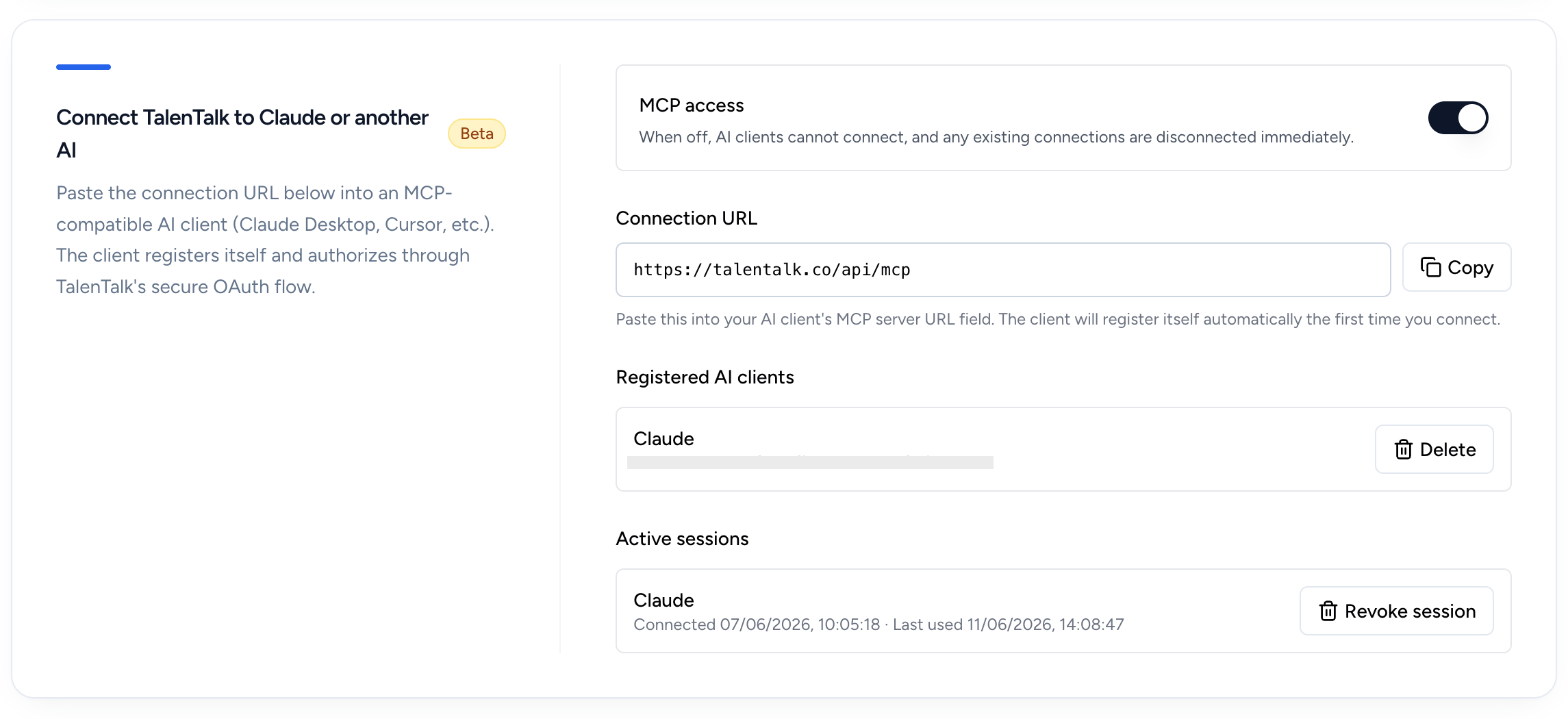
Open your Talentalk AI settings. The "AI Connector (MCP)" box sits just below the main AI settings box.
Turn the MCP access switch on. This activates the secure MCP endpoint that Claude will connect to. You can switch it off at any time to revoke all connected AI clients instantly.
2
Copy your MCP connection URL
Once MCP is enabled, Talentalk shows the connection URL. Click "Copy" next to it.
# The Talentalk MCP URL is:
https://talentalk.co/api/mcp
https://talentalk.co/api/mcp
3
Add a custom connector in Claude
Open Claude (web or desktop), then go to Settings › Connectors.
Step 1
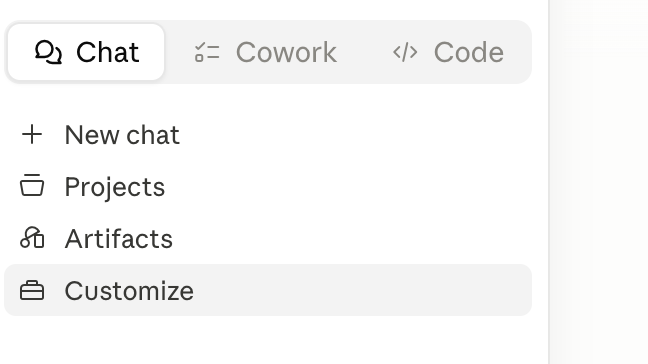
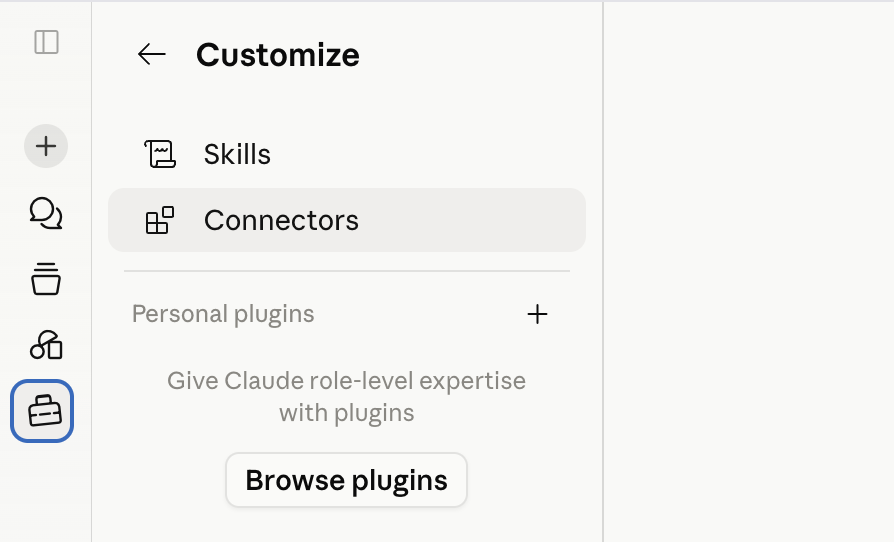
Click "Customize" then Connectors on the left in the main menu.
Step 2
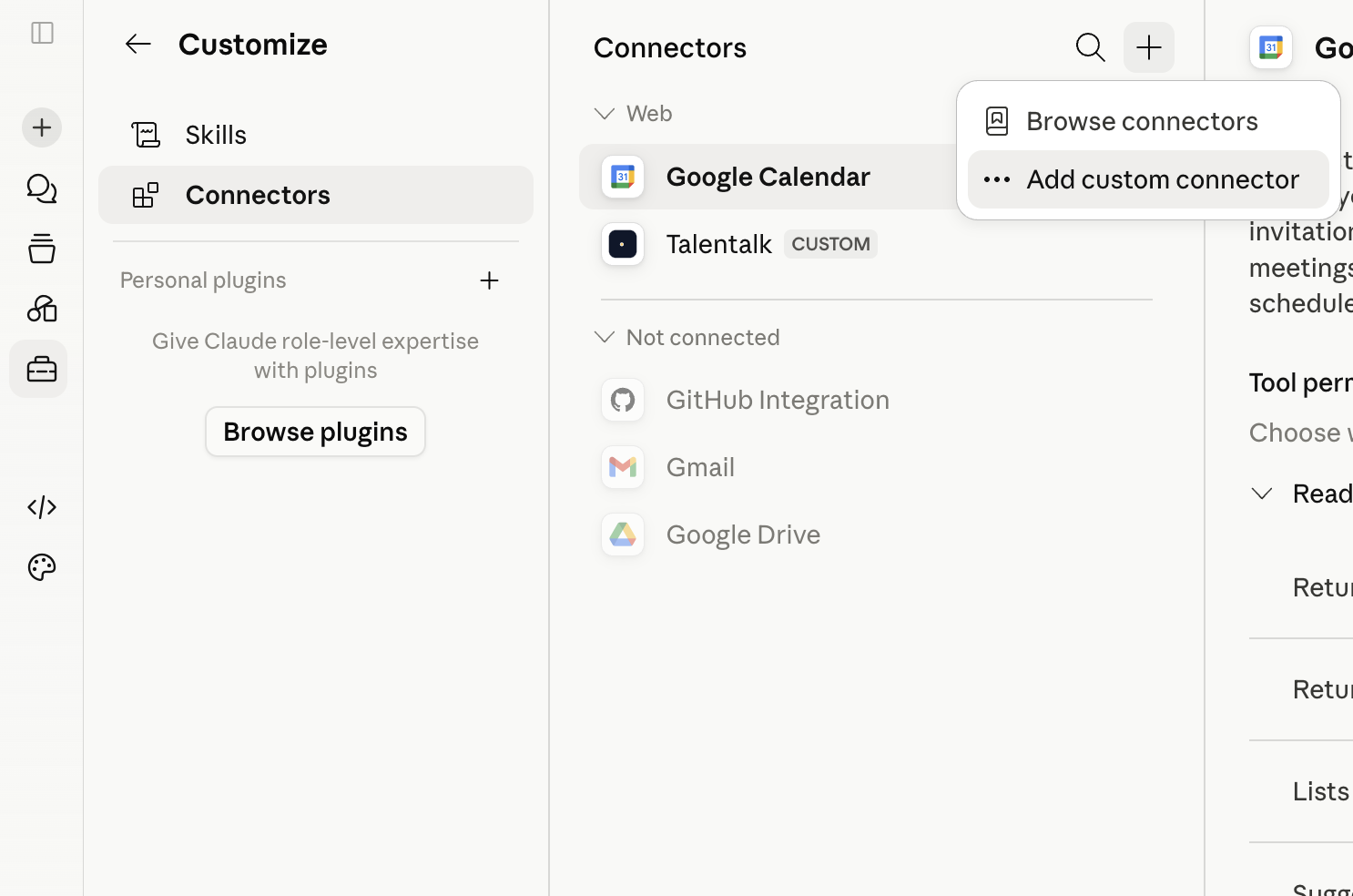
Click on the "+" icon on the top right part of the connectors' menu then "Add custom connector".
Step 3
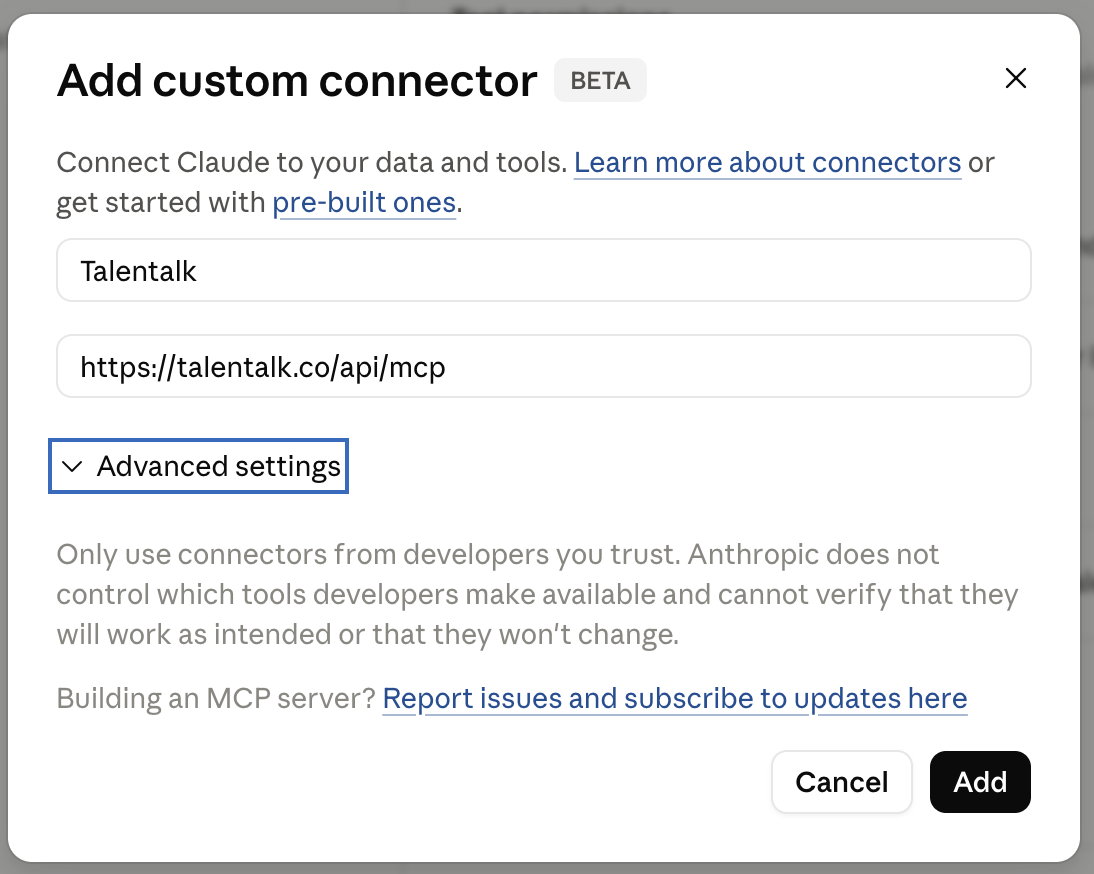
Name it "Talentalk" (or anything you like) and paste the connection URL from step 2.
Step 4
Click "Add" to save. Claude will detect that it's an MCP server and prepare the authentication process.
4
Authorize the connection
Step 1
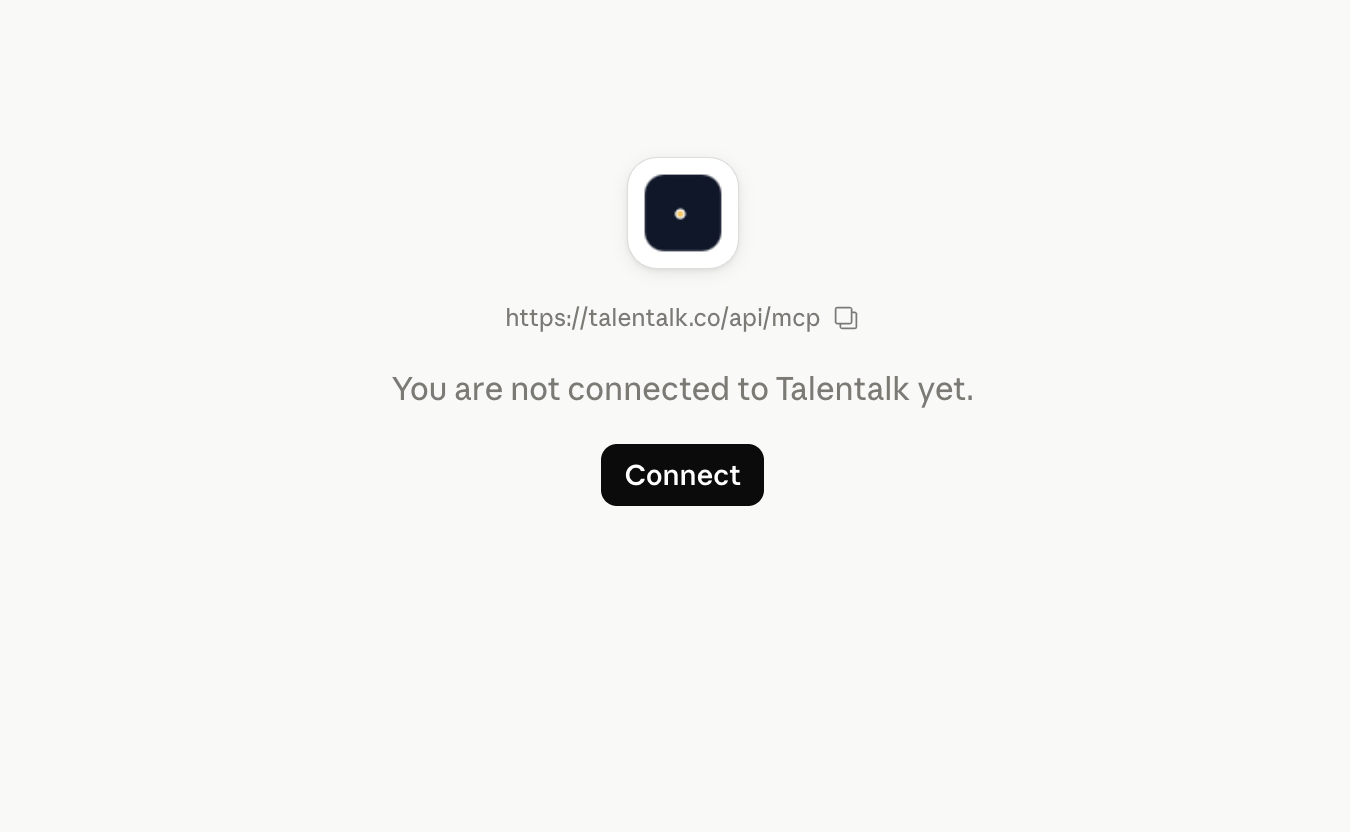
Click "Connect". You will be directed to Talentalk to approve the connection.
Step 2
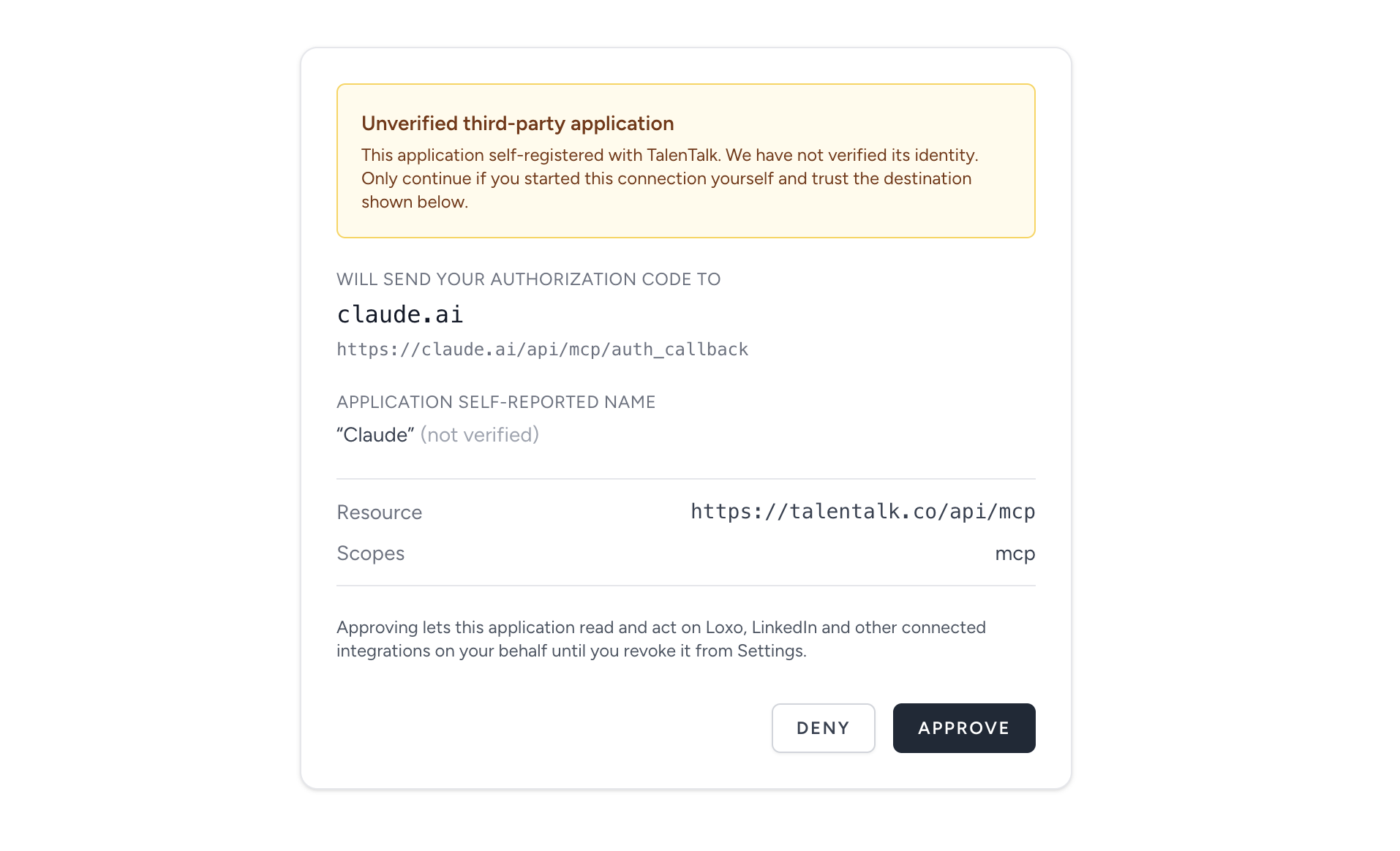
If it's the first time you connect Claude to your account, you will get a notice about an unknown application. You can ignore it and Click "Approve" to allow Claude to connect to your account.
5
Start chatting
You're done. Open a new Claude chat and try a question like:
# Try asking Claude:
Summarize the LinkedIn conversations I had this week.
Who's still waiting on a reply from me?
Draft a follow-up for Marcus Lee based on our last exchange.
Summarize the LinkedIn conversations I had this week.
Who's still waiting on a reply from me?
Draft a follow-up for Marcus Lee based on our last exchange.
That's it! Claude is connected to Loxo 🎉
You can revoke Claude's access at any time from the Talentalk settings page. Looking for ChatGPT instead? Read the ChatGPT guide.
New to Talentalk?Start your 10-day free trial – no credit card required.
Start free trial
Book a demo